
Access & governance
Users, Roles & Approvals
Control who can perform each action, then use the approval workflow to make inspection decisions explicit when evidence is incomplete.
Administration / approval permissions required
Capability, not title
InspectAssets authorises actions through permissions. A role is a convenient bundle of those permissions, but the role name itself is not the security rule. Build roles around the minimum capabilities a person needs and review them when responsibilities change.
User Management
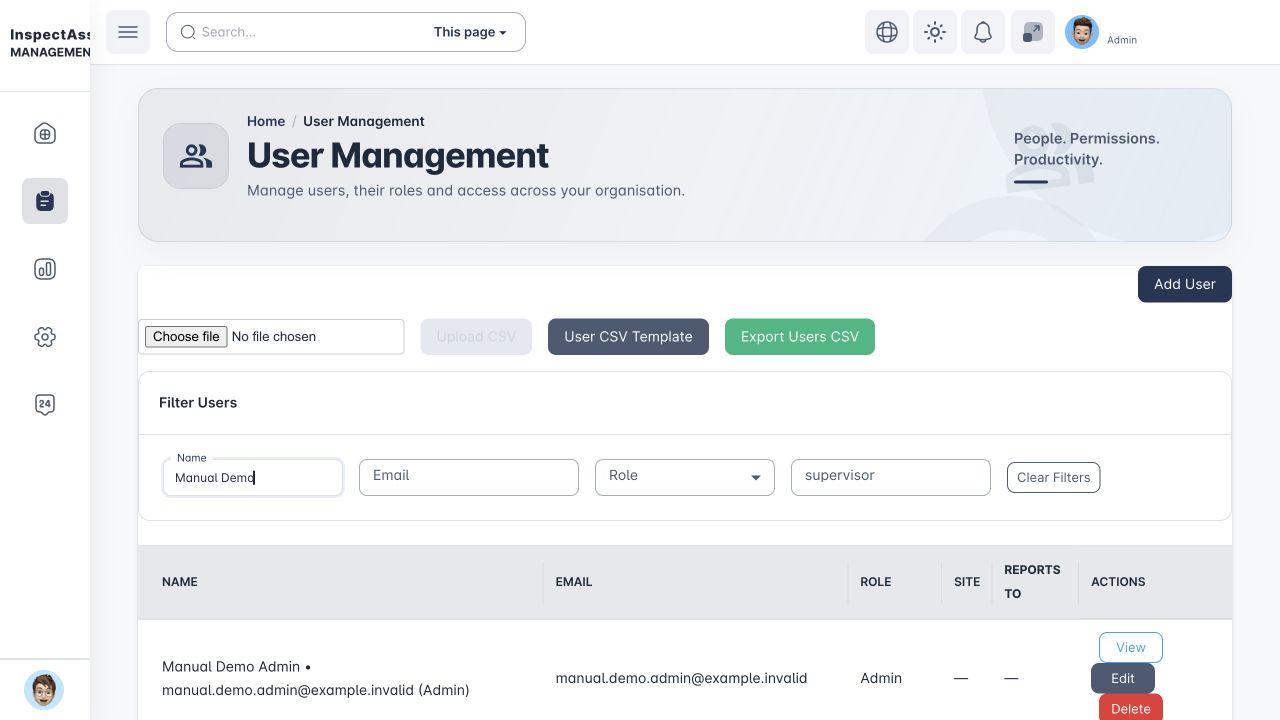
Requires: assign_roles
Use User Management to invite teammates, edit account details and assign roles. Search and filters help review larger teams, and authorised exports can be used for access reconciliation.
- Use the person's real work email and name so inspection/review attribution remains understandable.
- Assign the narrowest role that supports the job.
- Remove or change access promptly when responsibilities change.
- After material role changes, ask the user to refresh or sign in again so the session receives the new permission set.
Platform administrators must be conscious of tenant context. When acting inside a customer organisation, user administration applies to that selected tenant.
Platform Support User and Platform Support Manager are platform staff roles managed by Global Admin. They are not tenant roles and cannot be created or assigned by a tenant administrator.
Role Management
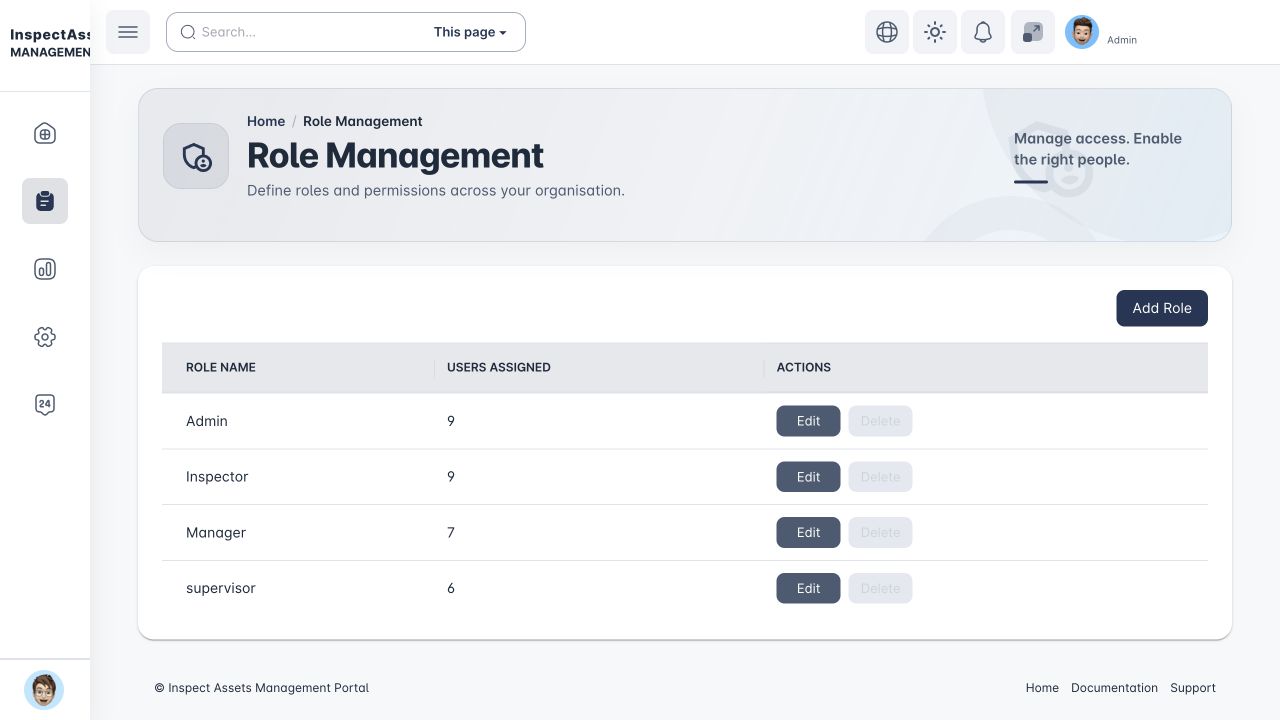
Requires: assign_roles
Roles group permissions for repeatable access patterns such as Inspector, Supervisor, Manager or Tenant Admin. Custom roles are useful when the standard bundle is broader than the person's actual responsibility.
Role changes can have wide impact
Changing a shared role affects every user assigned to it. Before removing a permission, check whether it is still needed for field work, review, reporting or administration. Reassign users before deleting a role.
Action permissions are separate
| Task | Required capability |
|---|---|
| Create / edit a site | create_site / update_site |
| Create / edit an asset | create_asset / update_asset |
| Create / conduct / approve an inspection | create_inspection / conduct_inspection / approve_inspection, with record eligibility and scope checks |
| Read / execute / verify corrective work | Separate action permissions and server-assigned work-order capabilities; viewing is not execution or verification authority |
| Billing workspace / cancellation | Billing read plus administration for the workspace; subscription mutation is separately authorised |
Neither Manager nor Admin is a blanket permission grant. An Inspector can create an inspection when explicitly granted create_inspection; an administrator without conduct_inspection cannot conduct it. Mobile uses the same specific capabilities for the workflows it supports and does not expose all web administration features.
Check the whole capability chain
| Job | Action capability | Additional record checks |
|---|---|---|
| Create / assign inspection work | create_inspection for creation; assign_inspection for assigning another eligible inspector. | Tenant, site/workspace scope and selected inspector eligibility. Creation can itself require schedule approval. |
| Conduct / submit | conduct_inspection. | Assigned inspector, approved-for-conduct state, pending/ongoing status, location, evidence and pre-submission validation. |
| Approve / decide uncertainty | approve_inspection for the web workspace. | A pending task assigned to the reviewer, the correct approval stage and any required reason/review date. |
| Create corrective work | manage_corrective_actions or manage_asset_maintenance. | Accessible action, eligible executor and the server's create-work capability. |
| Execute / upload proof | execute_corrective_work, manage_corrective_actions or manage_asset_maintenance. | The signed-in user must be the assigned executor; action visibility and work-order state also apply. |
| Verify / reject / close work | manage_corrective_actions or manage_asset_maintenance. | Authorised management access, server verifier capability and a different user from the assigned executor. Closure follows verification. |
| Export / share evidence | export_reports in addition to access to the relevant feature. | The selected tenant/site/legal-entity context, output entitlement and authorisation to share those records. A report-view grant alone does not allow export. |
Page visibility, action authority and record scope are separate checks. Tenant, site assignments and legal-entity restrictions can narrow results even after a page opens. Ask for the specific access needed for the job rather than a broadly named administrator role.
Why two users may see different data
Permission answers can this user open the feature? Operational scope answers which records inside the feature can they see? For example, an inspector may have report access but only to their own inspections, while a manager with the same page access can see a wider team scope.
Approvals
Requires: approve_inspection
The Approvals queue is a decision workspace. It exposes coverage and management uncertainty so the reviewer can tell the difference between a clean result with complete evidence and a clean result with unresolved inspection limitations.
Rows can include created date, record, coverage, uncertainty, status, approver, previous uncertainty decisions and remarks.
Review an inspection and record the decision
Before you start: you need approve_inspection, an enabled approval workflow and a pending approval assigned to your account. Schedule approval and review of a submitted inspection are different stages.
- Open Approvals and identify the pending record by site, asset, inspection and approval stage. Open the inspection detail separately when you need to inspect its photos or findings.
- Read the coverage summary, unknown items and linked open limitations. Check failures, supporting evidence and earlier decisions before acting.
- For a submitted inspection with no required uncertainty decision, use Approve only when the evidence supports it. Otherwise choose the appropriate decision described below.
- For clarification or reinspection, enter a Decision reason explaining exactly what needs attention, then select Return for Clarification or Request Reinspection.
- If deliberate acceptance is appropriate and offered, enter the reason and a future Risk acceptance review date. Check the open limitations that will be linked, then select Accept Limitation / Risk.
- Wait for confirmation and the refreshed queue. Check approval history for the record, including the actor, decision reason and review date where applicable.
Done when: the intended decision is recorded in history and the pending queue reflects the result. The disappearance of a button alone is insufficient confirmation.
Next owner: hand a clarification or reinspection request to the responsible inspection coordinator/inspector using your organisation's work process. Accepted limitations still need an owner and review by the recorded date. Do not assume a decision proves the follow-up work was completed.
If blocked: an empty queue can mean no pending task is assigned to you. Ask the workflow administrator to check the assignment and stage. If another reviewer has already acted, reload and read history before retrying. A missing normal approval button can be an intentional uncertainty safeguard.
Approval decisions
| Action | What it means | When to use it |
|---|---|---|
| Approve | Accept the submitted inspection as reviewed. | Available when no special uncertainty decision blocks normal approval. |
| Return for Clarification | Send the record back for explanation or additional clarification. | The existing evidence may be usable but the reviewer needs a clearer record. |
| Request Reinspection | Require another assessment to address missing/weak evidence. | The uncertainty should be resolved by returning to the field or repeating the relevant assessment. |
| Accept Limitation / Risk | Formally accept the open limitation for a controlled period. | Management deliberately accepts the unresolved state and sets a future review date. |
| Reject | Do not accept the submitted record. | The inspection or evidence is not acceptable for the intended workflow. |
When uncertainty requires a decision
If the approval has unresolved uncertainty requiring explicit management treatment, the normal Approve action is withheld. The reviewer must choose clarification, reinspection, risk acceptance or rejection. Clarification, reinspection and risk acceptance require a decision reason.
Accept Limitation / Risk additionally requires a future review date. The acceptance applies to the currently open limitations identified for that approval, which keeps the decision auditable and time-bounded.
Approval does not erase uncertainty
The review process is designed to preserve what remains unresolved. If management accepts a limitation, that is recorded as a decision; it is not rewritten as though the underlying inspection had full coverage.
Review before acting
- Confirm the asset/site and inspection identity.
- Read the coverage summary and open limitation count.
- Review failures and the evidence attached to material findings.
- Check prior clarification/reinspection/risk-acceptance decisions where shown.
- Choose the decision that matches the evidence, not the fastest way to clear the queue.