
Enterprise data onboarding
Data Onboarding
Stage asset CSV data before it changes the asset register. InspectAssets validates every row, surfaces mapping and duplicate issues, and lets authorised users correct or explicitly resolve them before commit.
Preview first, write later
Uploading a CSV to Data Onboarding creates a staging batch only. Preview does not create assets, sites or users. Governed asset records are created only when an authorised user commits rows that are ready.
Start a staged import
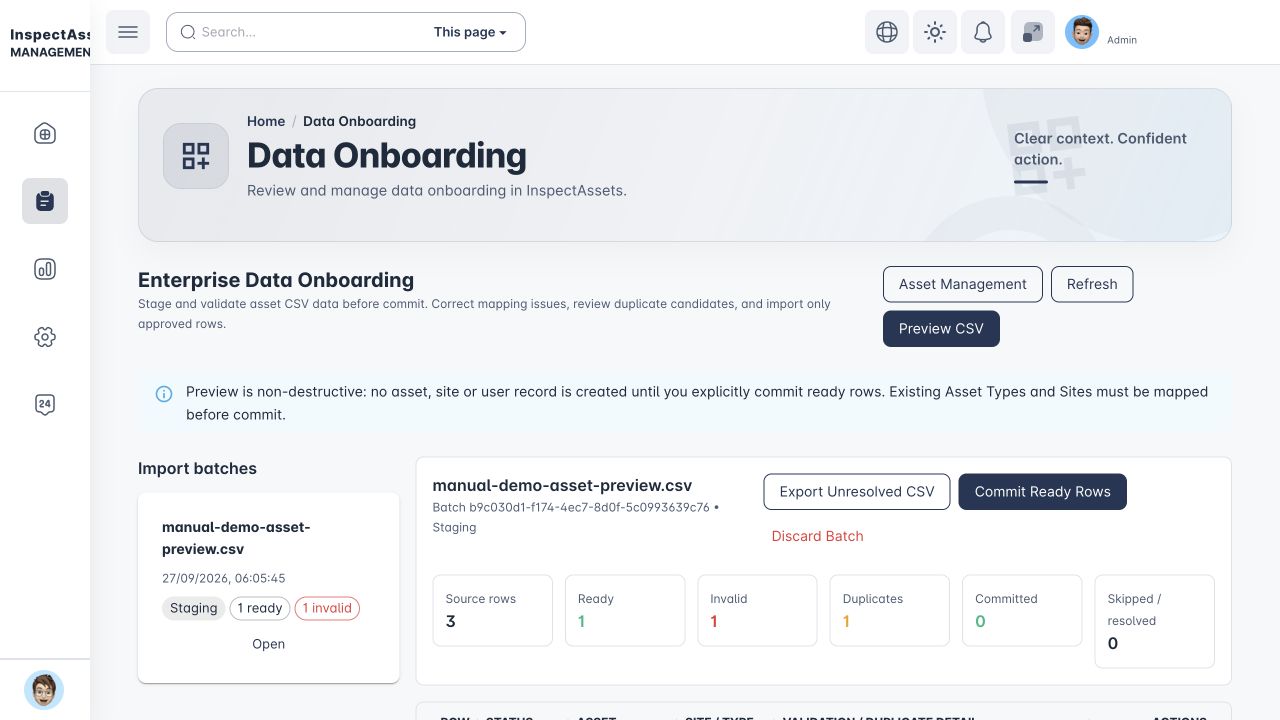
- Open Operations → Data Onboarding. You need
create_asset. - Select Preview CSV and choose the asset CSV.
- Review the batch summary for ready, invalid, duplicate, committed and skipped rows.
- Do not commit until row-level validation and duplicate candidates have been reviewed.
The staged workflow uses existing tenant Sites and Asset Types. If a supplied site or type cannot be mapped, correct or remap that row rather than silently creating a new Site or Asset Type.
Understand row validation
Rows are validated individually. A rejected row identifies the affected field and the reason so it can be corrected without re-uploading the whole file. Examples include an unknown site, missing or unmapped asset type, invalid purchase date, malformed number or unsupported status value.
Correct or remap a row
Choose Correct row on an unresolved row. You can update supported identity and mapping values such as asset name/code/serial, Site, Asset Type, purchase date/cost, criticality and lifecycle status. Saving the change revalidates the staged row immediately; the original supplied values and correction history remain auditable.
Review duplicate candidates
InspectAssets checks duplicate identity inside the active tenant before asset creation. Exact asset-code and serial-number matches are surfaced, and a same-name/same-site match can be shown as a likely duplicate. Rows that duplicate another row in the same staging batch are also surfaced.
Duplicate candidates are never silently merged. Make an explicit decision:
To leave the duplicate review without choosing an outcome, press Escape. The batch remains staged; dismissing the dialog does not commit or resolve the row.
- Skip row — do not create a new asset from that row.
- Use existing — resolve the row to a selected existing tenant asset.
- Keep as new — continue only when the identity can safely represent a distinct asset. An asset code that already exists must be corrected before a new record can be created.
Duplicate comparison is tenant-scoped. Assets belonging to another tenant are not candidates and are not exposed in the staging results.
Commit ready rows
Commit ready rows writes only rows that are currently ready. Invalid, duplicate or otherwise unresolved rows remain staged. This makes it possible to complete the clean part of a mixed-quality import without accepting unresolved data.
After commit, confirm the created assets in Asset Management. The staging record retains the source values, corrections, duplicate decisions and commit history.
Exclude or export unresolved rows
Use Exclude when a row should not be part of this import. Use Export unresolved CSV when rows need offline correction or review. The export includes row identity, supplied/corrected values and actionable validation or duplicate information so the file can be reconciled deliberately.
Discarding a batch
A fully uncommitted staging batch can be discarded. Once governed assets have been committed from a batch, keep the batch as its onboarding audit record rather than treating it as an unused preview.