Close the loop
Risk & Corrective Actions
Move from findings and recommendations to assigned remediation, proof-of-fix, verification and closure.
Completion is not the same as verification
A corrective action is designed to preserve the evidence chain. Work can be assigned and completed, but the control is stronger when proof-of-fix is uploaded and an authorised reviewer verifies the outcome before closure.
Risk Register
Users with view_corrective_actions or manage_corrective_actions can use the Risk Register as a management view of assets carrying current risk signals. It can bring together confirmed inspection findings, unresolved inspection limitations, asset-health concerns, compliance signals, recommendations, open corrective actions and relevant machine-condition risk signals where Continuous Condition Evidence is enabled.
Uncertainty and confirmed findings remain different. An inspection limitation means part of the intended assessment is still unresolved; it does not prove that a defect exists. Confirmed failed checks are shown separately so management can see whether the issue is known or still uncertain.
Use the reporting window, priority filter and risk-source filter to focus the register. Open limitations and open corrective actions remain relevant until they are resolved, while time-based findings and recommendations follow the selected reporting window.
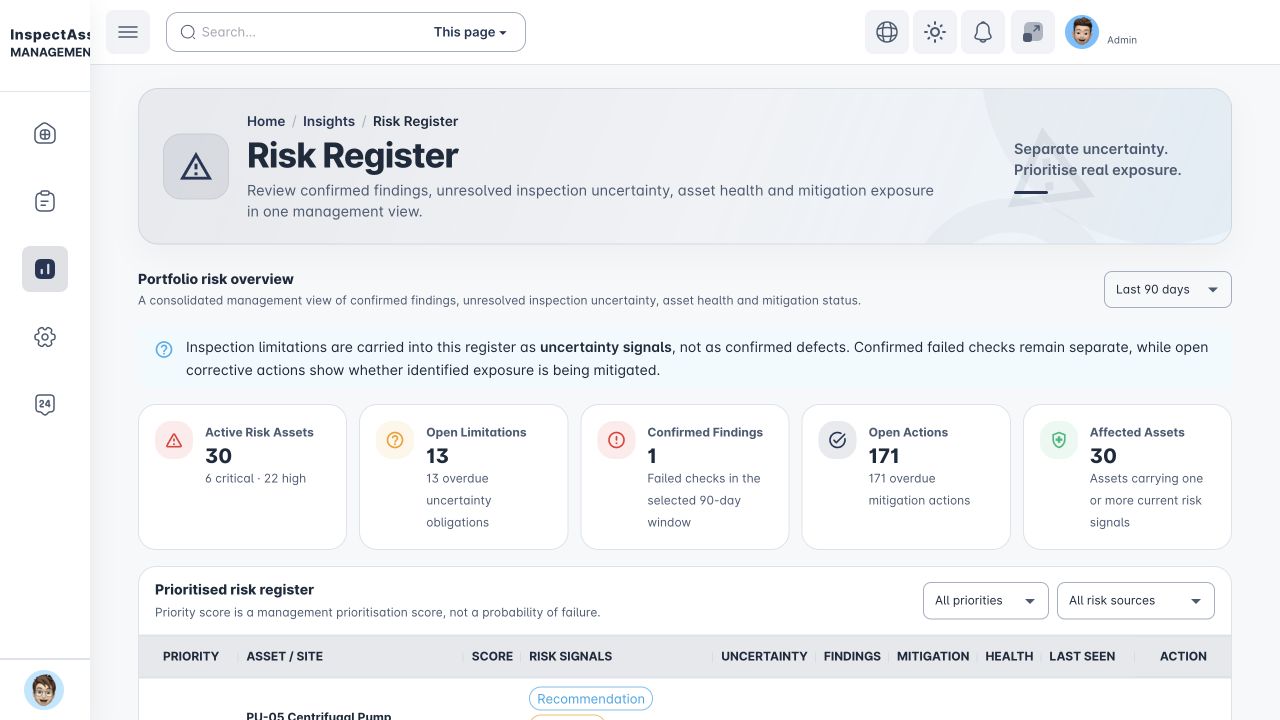
The priority score helps order management attention; it is not a probability of failure. Open high/critical machine-condition events can also increase inspection urgency. Use View to open the affected asset and review the evidence behind the risk signals before making a decision.
Corrective Actions
Corrective Actions are controlled remediation records. Depending on permission, the navigation may say Corrective Actions or My Corrective Actions. View-only users may be limited to actions assigned to them, while management permissions expose broader coordination controls.
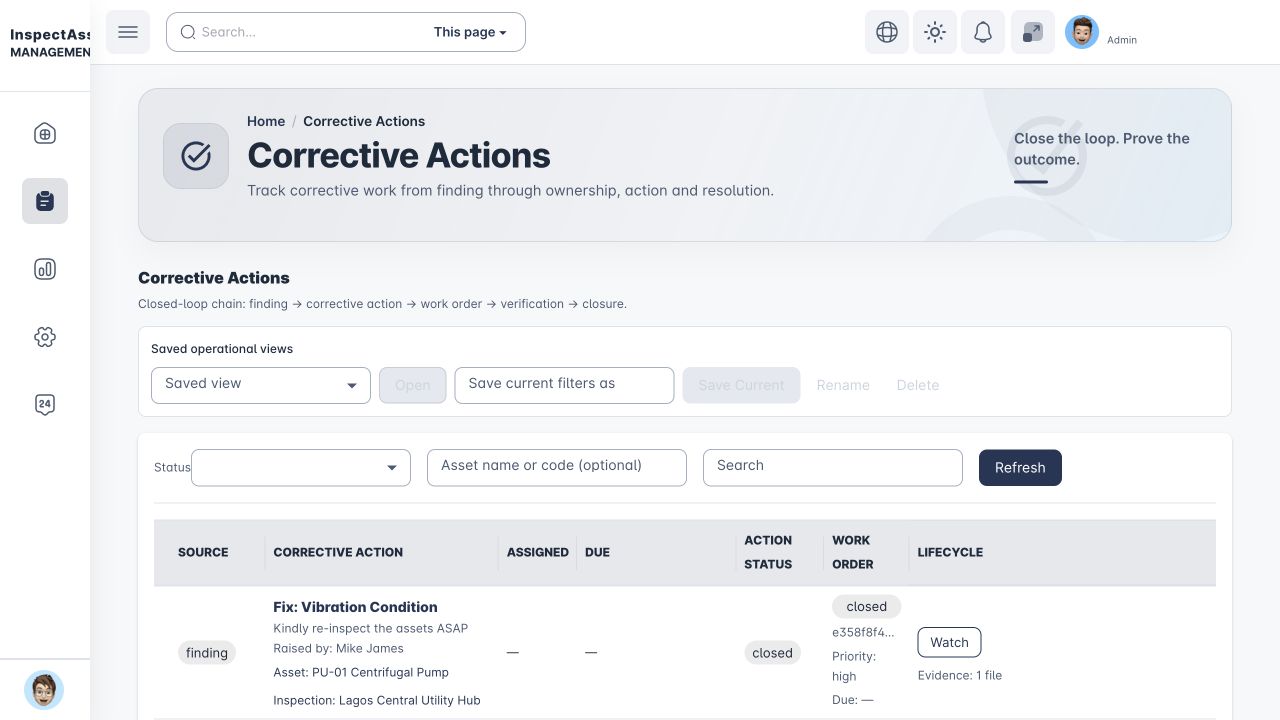
Capture what must be corrected, the affected record and the required completion context.
Give the action a clear owner and due date rather than leaving remediation implicit in an inspection remark.
The status can move through active work states such as open, assigned or in progress.
Completion requires supporting evidence. The action should not be treated as closed simply because someone says the work is done.
An authorised reviewer checks the completion evidence. A rejected fix returns the work for further action.
Close the record only after the required evidence/verification path has been satisfied.
Execute, independently verify and close corrective work
Before you start: confirm the action's site, asset and source inspection. Web access requires corrective-action view/management permission. Creating work needs management capability; execution also needs an eligible assigned executor. Verification and closure need an authorised manager who is not that executor. The server's record-specific capabilities remain decisive.
- The coordinator opens Corrective Actions and selects Create work order if no linked work order exists. Enter its title, description, Assigned executor, priority and due date, then create it.
- The assigned executor checks the work context and selects Start work, then Confirm. Carry out the work using the organisation's safe working procedures.
- Select Upload evidence to attach proof of the fix. Wait for the result and check the evidence count before proceeding.
- Select Complete work, enter meaningful completion Notes, then Confirm. At least one proof-of-fix file is required. The work order becomes completed while the corrective action awaits verification.
- A different, authorised verifier reviews the source finding, repair notes and proof-of-fix. Use Verify fix with verification notes if supported by the evidence, or Reject fix with a clear reason if further work is needed. Select Confirm.
- After successful verification, use Close action with closure notes and Confirm. Refresh the record and check the final action and work-order status.
Done when: the server shows the intended verified/closed state with proof-of-fix and review notes. Work completion, independent verification and closure are separate checkpoints.
Next owner: the executor hands completed work to the independent verifier; rejected work returns to the executor. The coordinator remains responsible for due dates and unresolved linked risk or compliance work.
If blocked: a visible action may still be assigned to someone else. Ask the coordinator to review the executor, not to share an account. Upload missing evidence before completing work. The assigned executor cannot verify their own fix. If contractor access is used, follow the separate contractor handover.
Execution and verification access
Viewing an action does not grant authority to execute or verify its work order. Execution needs the appropriate corrective-work/maintenance capability and the server's permission for that particular work order. Verification also depends on the server's record-specific capability and an eligible verifier; the assigned executor cannot independently verify their own work. Missing controls can therefore mean the record is not assigned or eligible, even when the action itself is visible.
On mobile, open Inspections → My corrective actions. Creating a work order, uploading proof, executing and verifying it are separately controlled. The full portfolio Risk Register and Insights remain web workflows.
Contractor Work Portal
When corrective work must be carried out by someone outside your InspectAssets tenant, a user with manage_contractor_work_portals can issue a scoped, expiring contractor work link from the corrective action. The server requires the specific contractor-portal capability; the Manager title or general action-view access is insufficient. The link is tied to one corrective work order and does not give the contractor a tenant user account, dashboard navigation, or access to unrelated assets and work.
Open the corrective action after its work order exists, choose Contractor access, add recipient/reference details, instructions and an expiry time, then create the link. The bearer URL is shown when it is issued; share it only with the intended contractor.
The link stops working after its expiry. An authorised manager can also revoke it immediately from the same corrective-action dialog. If a replacement link is needed, issue a new one instead of extending an old bearer URL informally.
The contractor sees only the assigned work context and can submit completion notes plus permitted image/PDF evidence. Server upload limits and file-signature/malware controls still apply.
A contractor submission moves the corrective work to the existing awaiting-verification stage. The evidence becomes visible in the internal corrective-action evidence chain.
An authorised internal verifier can accept the work or reject it with a reason. Rejection returns the work for correction, and the contractor link shows the rejection reason while the link remains valid.
External submission does not close governed work
The contractor portal can submit completion evidence, but it does not close, verify or approve the corrective action. Final verification and closure remain internal permission-controlled actions.
Status and overdue work
The workflow can include statuses such as open, in_progress, awaiting_verification, completed, verified and closed. Due dates and overdue styling help managers identify remediation that is slipping.
Smart Recommendations
Smart Recommendations uses available asset health, inspection history, risk and fleet-pattern context to suggest what may deserve attention. Recommendations can carry severity, confidence explanations, proposed SLA timing and action steps.
Recommendations support decisions; they do not replace evidence
Open the supporting asset and inspection records before committing resources or closing a risk. A recommendation is a prioritisation aid, not proof that a condition exists or has been corrected.
From uncertainty to work
Inspection limitations and corrective actions are related but not interchangeable. A limitation records that part of the intended inspection evidence is missing or unresolved. A corrective action records work to change a condition. If the next step is “we need better evidence,” use clarification/reinspection/limitation management. If the next step is “we need to fix the asset,” use corrective action.
Good closure practice
- Confirm the action is linked to the correct site/asset/inspection context.
- Assign an accountable owner and realistic due date.
- Upload proof that demonstrates the fix, not just a generic attachment.
- Use verification as an independent quality gate where your permissions/workflow allow it.
- Review linked compliance or risk records after closure to ensure the downstream position is updated appropriately.