Field companion
Mobile Field Guide
Use InspectAssets mobile to find site assets, conduct assigned inspections, capture evidence and sync field submissions. Mobile exposes supported workflows according to your permissions; it is not a copy of every web console.
Sign in and find your work
- Open InspectAssets and choose Sign in to your workspace. Enter your existing account credentials and complete any required MFA or password-change step.
- Check your name, role and tenant. If the organisation is wrong, stop before recording work and contact your administrator.
- Use the bottom tabs available to your account: Dashboard (or My Day for an inspector), Inspections, Sites and More. A tab can be absent when you lack its access permission.
- Open Inspections to choose a task. Cards can include Create inspection, Inspection list, Conduct inspections, Scan asset (QR/label), Offline queue and My corrective actions. Only authorised cards appear.
Dashboard figures come from your permitted scope and reporting period. UNKNOWN condition means no condition was recorded; it is not a pass. A missing-data or loading state should not be interpreted as zero activity.
Find the assets at a site
- Open Sites and choose the site you need.
- Confirm its name and location. Review Total assets, Needs repair and Unknown.
- Scroll to Assets. Search by name, type or condition, then select an asset to open its record.
- Use Open in maps for directions. Android can show a coordinate card instead of an embedded map when the maps integration is not configured.
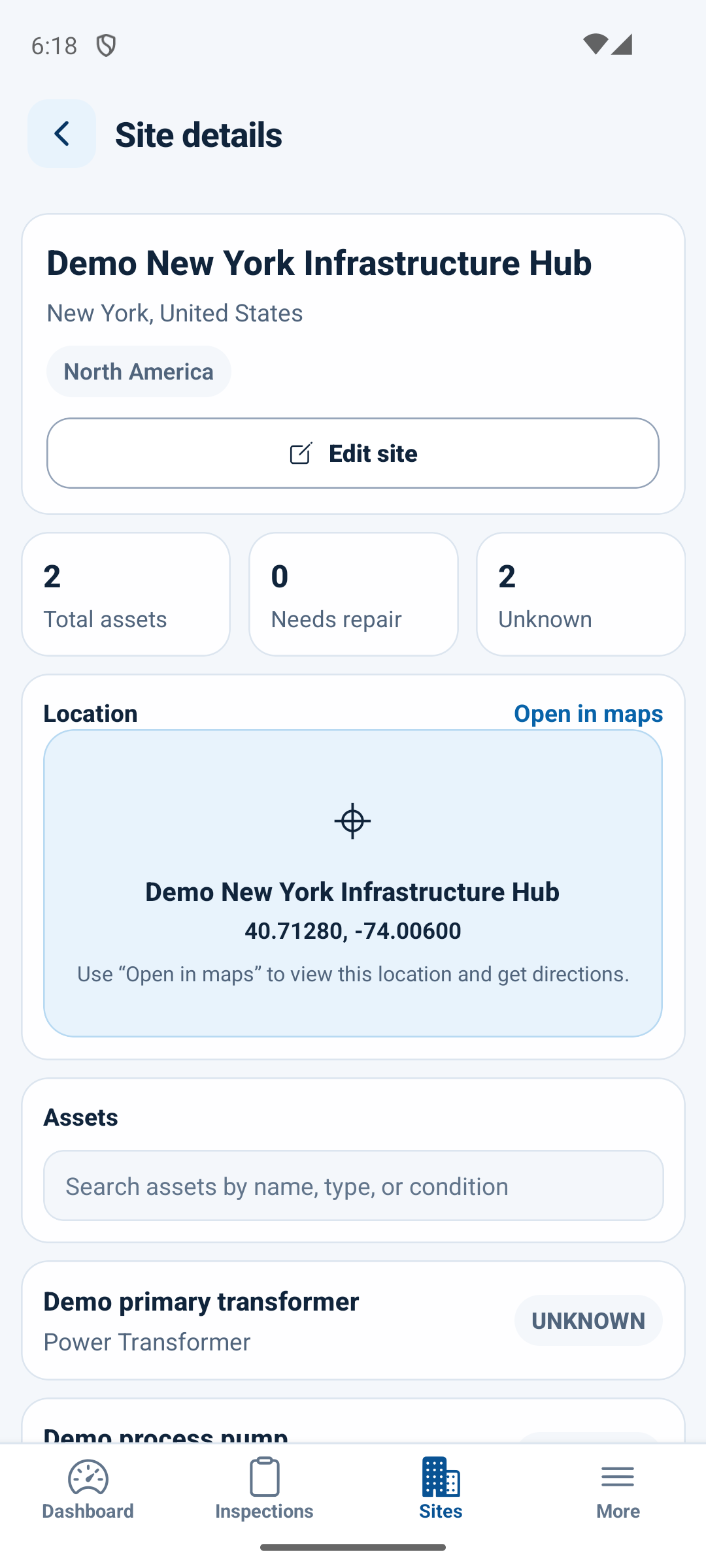
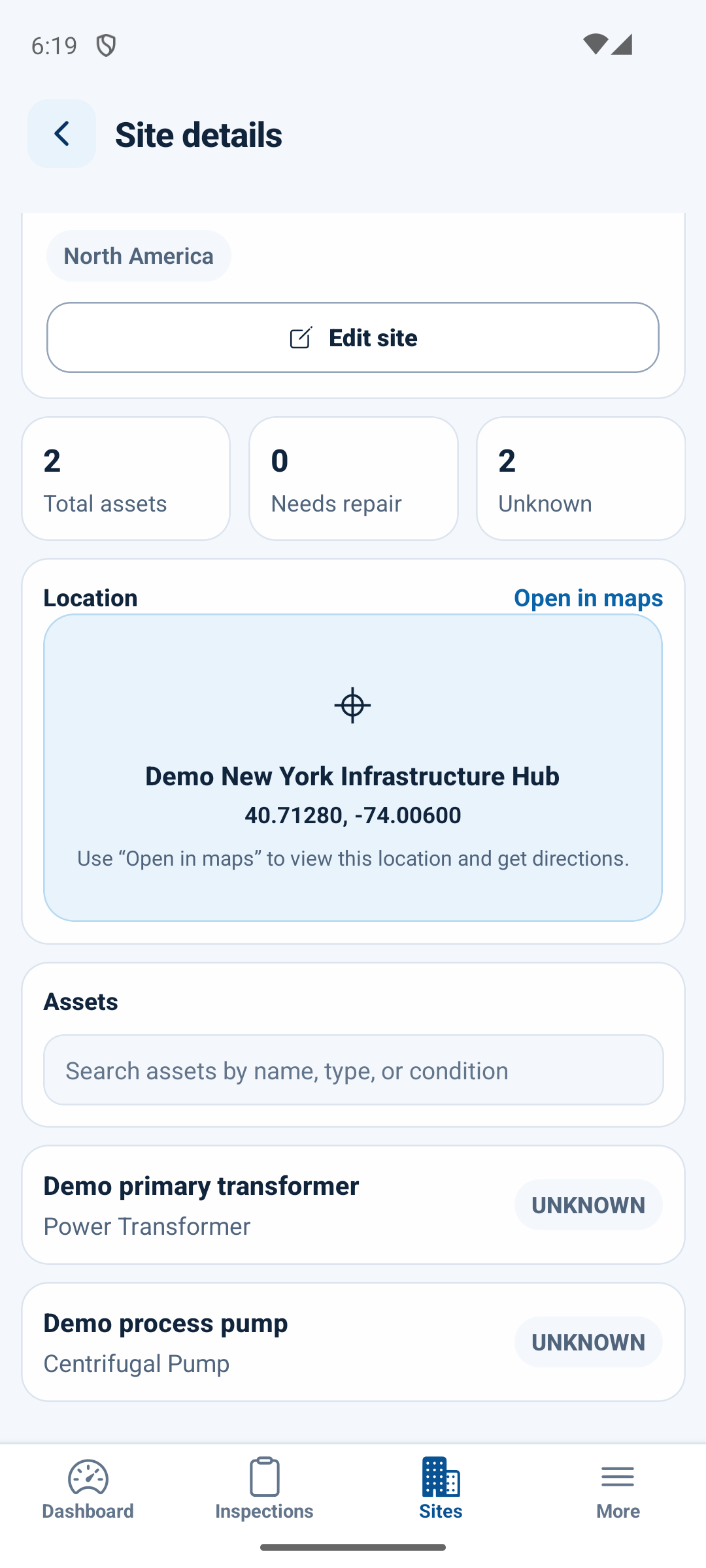
A successful empty result says This site has no assets yet or explains that no rows match your search. A loading error offers Retry; retry loading before concluding that assets are missing. Creating an asset requires create_asset; editing one requires update_asset. Site editing uses update_site. These are independent permissions.
Conduct an assigned inspection
- Open Inspections → Conduct inspections, then choose an inspection assigned to you and approved for conduct. You need
conduct_inspection; the server also checks assignment, tenant and pending/ongoing status. - Confirm the site and asset. Under Location check, select Start check and allow foreground location access when asked.
- Wait for Location verified. You must be within 50 metres of the stored asset coordinates. The form remains blocked after a rejected check. If GPS is inaccurate, verify your position and retry with Re-check; ask an authorised administrator to correct inaccurate asset coordinates.
- Choose the assessment state for each applicable item. Add the result/value, a reason and explanation for non-inspected states, and any required photos or evidence notes. Camera and photo-library access are requested when those features are used.
- Review previous open limitations. To resolve one through this inspection, assess the matching item as Inspected and provide current evidence and resolution notes.
- Select Review & submit. Resolve any required-evidence gaps. Read the coverage, unknowns, failures and evidence summary, then select Confirm & submit.
- Wait for the submission result. Open the inspection detail to confirm its server status; an inspection submitted for review has not necessarily been approved.
Location errors are not session expiry
A location rejection, camera prompt or brief background transition does not sign out a still-valid session. Dismiss the message and correct the workflow issue. Genuine inactivity expiry or a revoked session can still require sign-in. If a location check alone returns you to the landing screen, report it through Support with the exact message.
If connectivity is unavailable during location validation, the app can capture the position and allow offline completion of an already loaded inspection. The server revalidates the recorded coordinates when it syncs; offline mode does not waive the 50-metre rule.
Scan an asset or enter its code
Open Inspections → Scan asset (QR/label). Use Camera scan with camera permission, or choose Manual, enter the label and select Open asset. An eligible next inspection can open the conduct workflow; otherwise the asset passport opens if you have asset-view access. Scanning requires conduct_inspection and does not bypass assignment or asset access.
Save and sync offline submissions
- Load the inspection, template and previous limitations while online before leaving connectivity. Offline mode does not provide offline sign-in or guarantee first-time loading of uncached records.
- Complete the assessment and confirm its offline submission. The Queued message means it was retained on this device, not received by the server.
- When online and signed into the appropriate account, open Inspections → Offline queue and select Sync all.
- Read Sync complete, including Synced and Failed counts. Successful entries leave the mobile queue; failed entries remain with Last error.
- Confirm the inspection in the server list/detail. For a failed entry, read its error, use Open to investigate and retry only after the cause is corrected. Sync performs a fresh server evidence review before submission.
Protect unsynced work
Do not choose Remove, uninstall the app, clear app storage or delete local evidence photos while submissions are queued. A Last sync timestamp records a sync attempt, not proof that every item succeeded. Keep the original device until the server record is confirmed.
Hand over a field submission
- Confirm the intended inspection is on the server, including its evidence, before telling the coordinator it has been submitted.
- Give the coordinator/approver the inspection reference and explain any unresolved limitations. Queued work is still local work awaiting receipt.
- If only some entries synced, identify the remaining items and their last errors. Preserve their original files and device storage.
- Use recover field work safely for access, location, missing-asset, expired-session and sync problems.
Mobile access and web-only workflows
Mobile uses specific action permissions and server record capabilities. A role name does not grant extra authority. Create inspection, conduct inspection, approval, asset creation and asset editing are separate capabilities. Corrective-work execution and verification also depend on assignment and the server's permission for that particular work order; viewing an action alone is insufficient.
| Area | Current mobile behaviour |
|---|---|
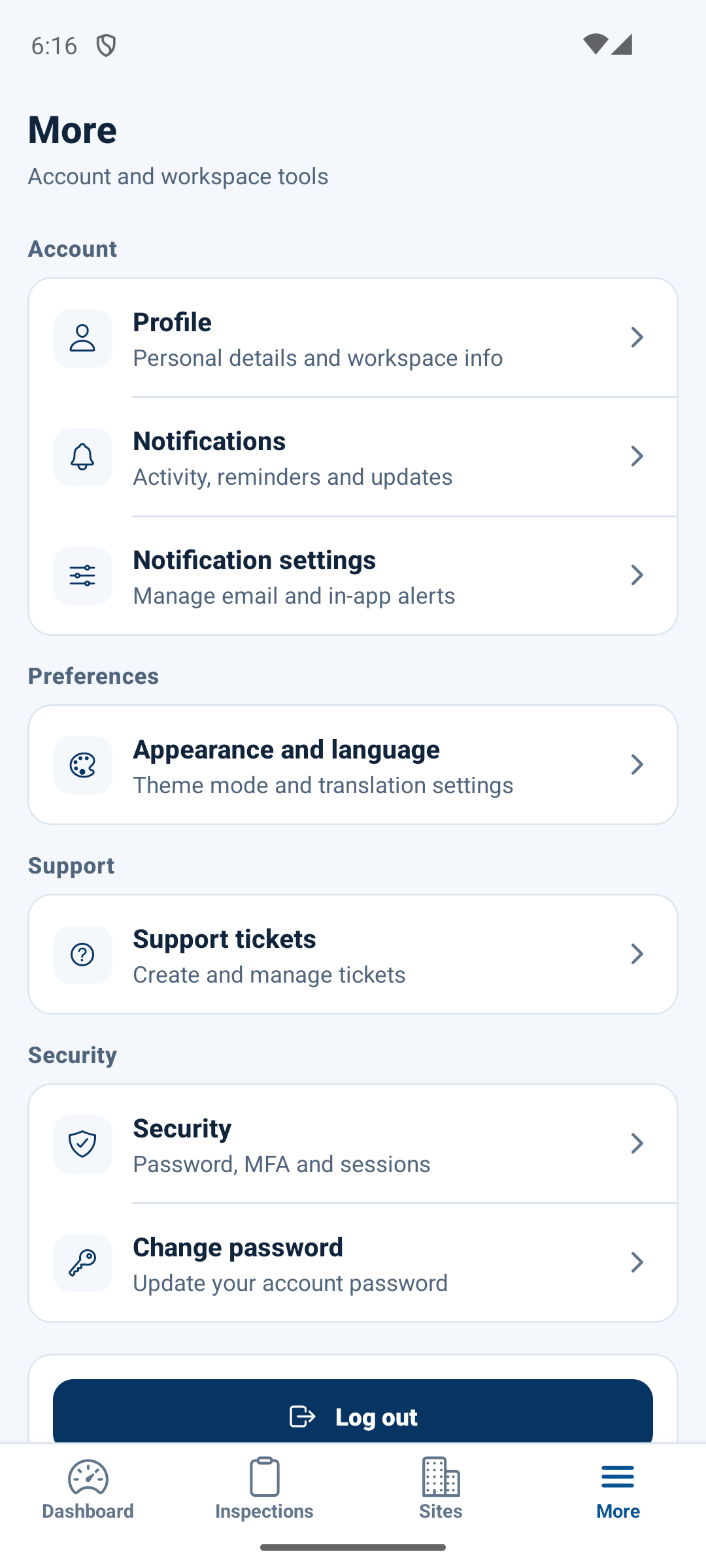
| More | Profile, Notifications, Notification settings, Appearance and language, Security and Change password are personal tools. Support and administration depend on access. |
| Account / cancellation | The Account route needs billing read access plus billing administration and view_billing. Manager alone grants neither. Cancellation separately needs cancel_subscription and is not offered on iOS. |
| Organisation profile / configuration | Only appropriately authorised users see these mobile entries. They do not expose all web organisation controls. |
| Insights and portfolio consoles | Insights has no mobile route. Use the web app for portfolio Risk Register, continuous-condition setup, compliance administration, staged imports, role administration, playbooks and full report/evidence-sharing workflows. |
| Support and corrective work | Visible records do not grant every action. The available reply, update, resolve/reopen, execution and verification controls follow record-specific capabilities. |
Session and appearance
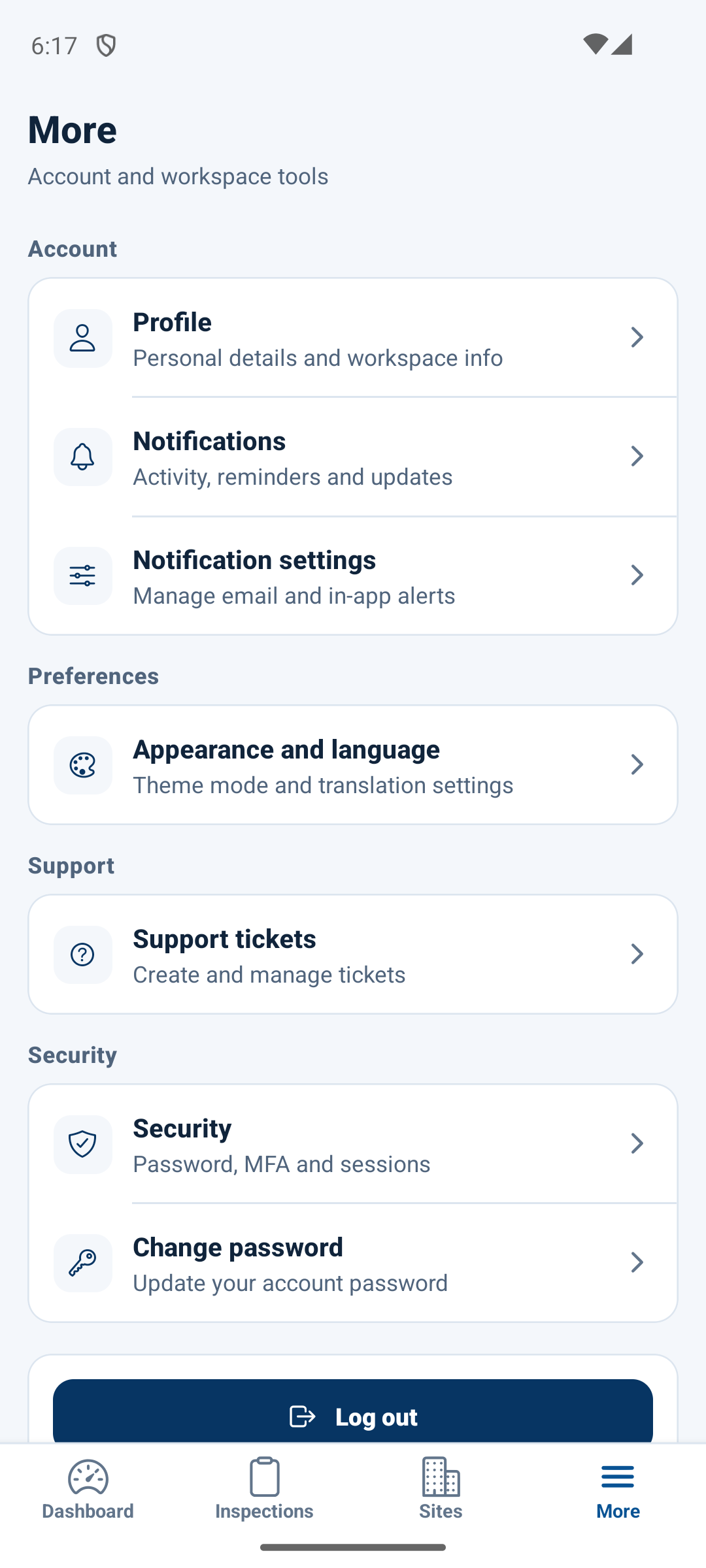
Use More → Appearance and language for the supported theme/language settings. Use More → Security for available password and MFA controls. Switching briefly to another app preserves a valid session, but the inactivity deadline continues to apply. A cold app restart starts signed out; it does not promise persistent automatic login.
The native session does not automatically authenticate a separate web browser. For browser documentation, sign into the web app in that browser and open Documentation there.
These native screenshots were captured during the local mobile verification on 2 October 2026. They show synthetic demonstration data. A full narrated mobile inspection tutorial has not yet been recorded.