Inspection assurance
Inspections
Plan, conduct and review inspections without hiding uncertainty — from assignment through evidence capture, coverage review, limitations, approval and follow-up.
The central rule
An item that was not assessed is not the same as an item with no defect. InspectAssets requires explicit assessment states so management can see what was inspected, what was not, why it was not, and how much confidence can reasonably be placed in the conclusion.
Inspection lifecycle
Choose the site/asset, template, inspector and schedule. Permissions determine who can create or assign inspections.
The inspection must be approved for conduct, assigned to you and in a pending/ongoing state. Location validation requires your current position to be within 50 metres of the stored asset coordinates.
Record an explicit assessment state, field value/result and required evidence.
Previous unresolved limitations are surfaced so the current inspection can verify them with evidence when possible.
InspectAssets calculates coverage, unknowns, failures, evidence counts and required-evidence gaps before final confirmation.
Completed inspections enter the approval/review flow when applicable. Uncertainty can trigger clarification, reinspection or formal risk acceptance rather than a simple approval.
Inspection Management and scope
The Inspection Management workspace is permission- and role-aware. Tenant-wide administrators can see a broader management picture, managers/supervisors work from coordination or review scope, and field inspectors can be limited to assigned work. The same page name therefore does not guarantee the same records or default tabs for every user.
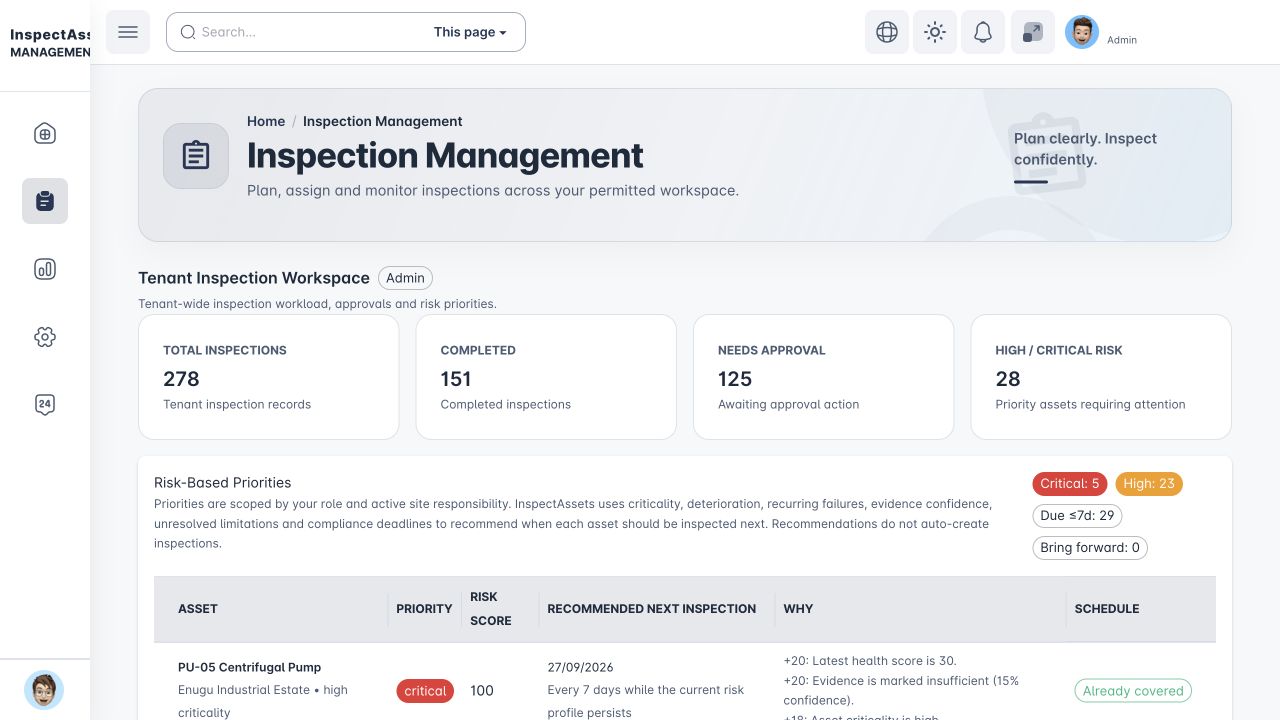
Typical capabilities are controlled by permissions such as view_inspection_management, assign_inspection, create_inspection, approve_inspection, conduct_inspection, view_inspection and view_inspection_operations.
Submit an inspection with its evidence
Before you start: use an account with conduct_inspection. The inspection must be assigned to you, approved for conduct and open in a pending/ongoing state. Confirm access to the correct tenant, site and asset. Creating or approving an inspection does not grant conduct permission.
- Open the assigned inspection from Inspection Management. Check its site, asset and schedule before entering evidence.
- Select Start Conducting Inspection and allow location access. Wait for location verification before filling the form. The location must be within 50 metres of the stored asset coordinates.
- For each checklist item, choose the assessment state that describes what happened. For an inspected item, enter the actual value/result. For an unknown or inaccessible item, record its reason and explanation.
- Add each required photo and evidence note. Check that the attachment belongs to the right field and asset; a selected filename alone is not proof of a successful submission.
- Review the prior-limitations warning. Use Review & Verify for matching items that you can now inspect, with current evidence and resolution notes. Leave genuinely unresolved items visible.
- Select Review & Submit Inspection. Check coverage, unknown items, failures and evidence. Use Back to inspection to correct gaps.
- When the review is accurate, tick I have reviewed the coverage, unknown items, failures and evidence summary. Select Confirm & Submit once and wait for the result.
- Reopen the inspection detail and confirm the server record, findings and evidence. If the submission was queued offline, follow the offline checks before treating it as received.
Done when: the intended inspection is recorded on the server with the submitted evidence and resulting status. A local queue entry or submission-review dialog is not that confirmation.
Next owner: the assigned approver, where the workflow requires submission approval. Give them the inspection reference and any unresolved limitations; do not describe a submitted record as approved. See review an inspection.
If blocked: missing assignment or site access goes to your coordinator; incorrect coordinates go to an authorised asset administrator. Fix evidence gaps in the form. If prior limitations cannot load, reload while preserving unsynced work. See recover field work safely.
See the Mobile Field Guide for exact mobile controls, background/session behaviour and sync confirmation.
Assessment states
Each checklist item should communicate what actually happened. The supported assessment-state model includes:
| State | Meaning | Effect on interpretation |
|---|---|---|
| Inspected | The item was assessed. | A field result/finding can be recorded and can contribute to condition/health. |
| Not inspected | The item was intentionally not assessed. | Requires a reason and contributes to unknown scope, not a pass. |
| Inaccessible | Access prevented assessment. | Requires a reason and becomes visible management uncertainty. |
| Unable to test | The inspector could see the item but could not perform the required test. | Requires a reason and remains unresolved evidence scope. |
| Not applicable | The checklist item does not apply to this asset/inspection. | Excluded from applicable-scope coverage. |
| Pending | Assessment is not yet complete. | Remains unknown until resolved. |
Older records that cannot be classified under the current model are treated conservatively as unknown rather than being assumed inspected.
Reasons for non-inspected states
Unknown states require context. Available reason categories include access restriction, unsafe to assess, unavailable equipment or test equipment, operational constraints, time constraints, missing information, out-of-scope/feature-not-present situations, deferred work and other documented reasons.
Use the most accurate reason available and add notes where needed. The objective is to make the limitation understandable to a reviewer who was not present in the field.
Required field evidence
Templates can require a photo and/or note for a field. Requirements can apply always or only on failure. Where a note is required, a minimum note length can be configured; photo requirements can specify a minimum number of photos.
Evidence rules apply to inspected items
A failure-triggered evidence rule only applies when the item is actually inspected and fails. An inaccessible or not-inspected item should carry its assessment reason instead of being forced into a fabricated pass/fail result.
Inspection Coverage
Coverage is calculated from the applicable checklist scope. Inspected items count as assessed; not-inspected, inaccessible, unable-to-test, pending and legacy-unclassified items remain unknown; not-applicable items are excluded.
A typical summary reads in the form x/y inspected • z unknown. Coverage is deliberately shown beside condition so a reviewer can distinguish a strong health result based on broad evidence from one based on only part of the intended scope.
Previous limitations and verification
When an earlier inspection left an unresolved limitation, the current field workflow can surface it with the source inspection, date, source inspector, due date, owner, assessment state/reason and verification status.
Use View Source Inspection when context is needed. Where the current checklist contains the matching item, Review & Verify takes the inspector to it. To resolve the limitation through the current inspection, the matching field must be inspected and supported by current evidence, then the inspector records resolution notes.
Carry-forward verification protects submission
If the application cannot verify prior limitations successfully, final submission is disabled until the inspection is reloaded and the carry-forward state is available. This prevents a technical loading failure from silently dropping an unresolved limitation.
Pre-submission review
Before final submission, InspectAssets summarises the evidence you are about to commit. Review it as a quality gate, not a formality.
The review can identify coverage as complete, partial or unavailable. Correct evidence gaps before confirming submission.
Calculated Asset Health
Overall Asset Health is calculated after submission from inspected condition and failed findings. Inaccessible, not-inspected, pending and unable-to-test items reduce coverage/evidence confidence but are not automatically treated as defects. This is why the inspection detail presents condition and uncertainty separately.
Working offline
After the inspection and its template/previous limitations have loaded, an offline submission can be retained locally in the Offline Queue for later sync. This does not promise offline sign-in or offline loading of every record. Before leaving the site, check that required photos/notes are attached and, once online, confirm the queue has synced successfully.
If an item fails to sync, read its server error and retry only after the cause is understood. Sync performs a fresh server pre-submission review and enforces the recorded location. Web queue entries can show synced; successful mobile entries leave the queue. Check the server inspection record as well. Do not clear browser/app data, uninstall the app or remove evidence files while unsynced work remains.
Inspection detail and evidence quality
Inspection detail is designed for review as well as record keeping. Depending on data and permissions, it includes the inspection summary, visits/comparisons, AI briefing and an Evidence Quality view.
Evidence provenance can show capture source, time, person, device and location, with a quality band/score and supporting reasons. Authorised users can verify evidence. Historical/submitted inspections retain their captured template/evidence context so later template changes do not rewrite the record you originally submitted.
Approvals and uncertainty decisions
Approvers see coverage and uncertainty beside the approval status. If an inspection requires an uncertainty decision, a plain approval is not offered. The reviewer must choose an action that explicitly addresses the unresolved position.
| Decision | Use when | Required context |
|---|---|---|
| Approve | No special uncertainty decision is required and the evidence supports approval. | Normal approval review. |
| Return for Clarification | The existing record may be sufficient, but the reviewer needs explanation or clarification. | Decision reason. |
| Request Reinspection | The missing/weak evidence should be resolved by another field assessment. | Decision reason. |
| Accept Limitation / Risk | Management deliberately accepts the unresolved limitation for now. | Decision reason and a future risk-acceptance review date; acceptance applies to the linked open limitations shown. |
| Reject | The submission should not be accepted. | Review/remarks as required by your workflow. |
Inspection Operations and limitations register
Users with view_inspection_operations can manage uncertainty across the portfolio instead of opening inspections one by one. The Management uncertainty summary rolls up open limitations and their ageing/risk signals. The Inspection limitations register supports filters for status, ageing, risk, owner and reason.
Limitations Register vs Risk Register
The limitations register is the operational record of inspection uncertainty: what could not be fully assessed, why it remains unresolved and who owns the follow-up. The Risk Register is a management view that can bring that uncertainty together with confirmed findings, asset health, compliance concerns and open corrective work. A limitation remains an uncertainty signal; it is not automatically treated as a confirmed defect.
Open limitations can be assigned an owner/due date or resolved. Resolved records retain resolution notes, resolver/date and the resolution method. Where appropriate, a resolved limitation can be reopened.
Overdue uncertainty is operational work
High-risk overdue or unassigned limitations should be managed like other controlled work. Leaving them in the register without ownership does not make the underlying uncertainty disappear.
Inspection templates
Users with template-management permission can create or customise inspection templates, including field types, required fields and evidence validation rules. Treat template changes as controlled configuration: they affect future inspections, while historical submitted records keep the context captured at the time.