
Portfolio structure
Site Management
Build a defensible site portfolio with physical location, legal ownership/operation, controlled site types, risk context and mapped operations.
Requires a site view/create/update/delete or site-operations permission
Enterprise site model
A site is more than a name and address. InspectAssets separates where a site operates from which registered legal entity owns or operates it. Controlled site types make categorisation consistent across the portfolio, while risk, compliance and inspection history stay attached to the site record.
Portfolio view
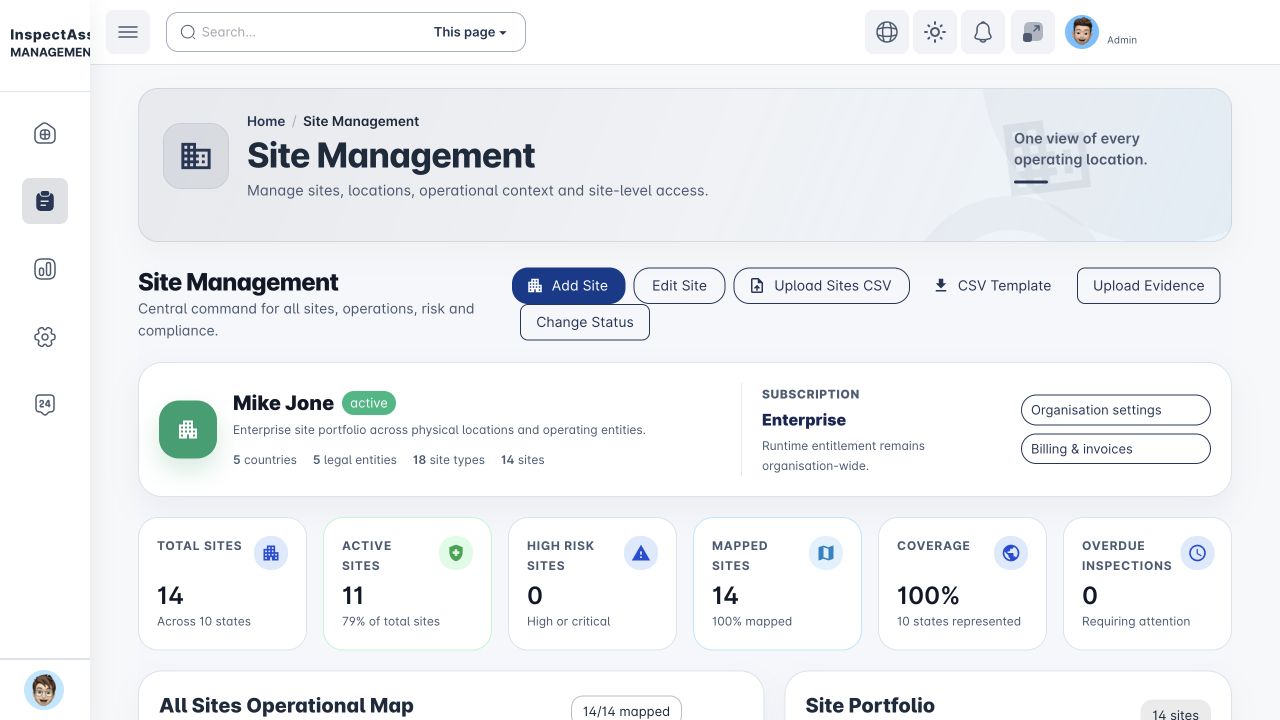
The Site Management landing view gives authorised users an enterprise portfolio summary. Depending on your permissions and data, it can show organisation context, countries, legal entities, site types, total sites and subscription context, alongside operational indicators such as active sites, high-risk sites, mapped coverage and overdue inspections.
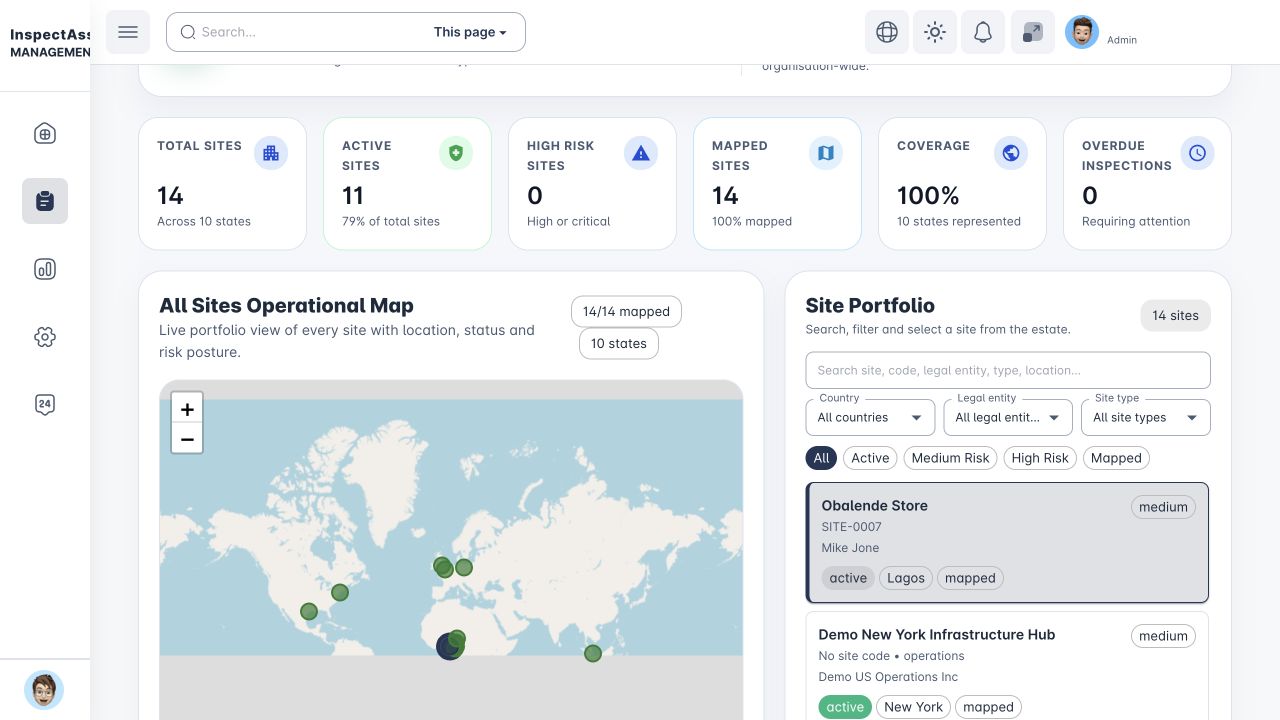
Filters let you narrow the portfolio without changing the underlying access boundary. Legal entity and site type filters are particularly useful in multi-company or multi-operation structures.
Creating or editing a site
create_site and update_site separately control creation and editing. Assigning a legal entity requires assign_site_legal_entity or the equivalent authority returned for your site structure. CSV upload requires upload_sites. Site documents, lifecycle, team, risks and compliance also have separate view/manage capabilities; opening the site does not grant every tab action.
Site creation uses structured enterprise fields so downstream reporting does not rely on inconsistent free text.
- Identify the site. Enter the site name and physical location details, including country and state/region.
- Choose the operating/legal entity. This is the registered company associated with the site. It is distinct from the site's country.
- Select the controlled site type. Use an organisation-approved type rather than creating informal labels in the record.
- Add operational context. Complete lifecycle, risk, compliance and other fields relevant to your configuration.
- Map the site. Save coordinates where available so the site can appear on the operational map.
Country and legal entity mean different things
Country describes the physical jurisdiction in which the site operates. Legal entity describes the registered company responsible for the site. Do not use one as a substitute for the other.
Organisation structure links
Authorised users can move from Site Management to organisation settings and billing/invoice areas. Legal entities, billing accounts and tax profiles are managed centrally in Organization Settings; site records then consume that controlled structure.
All Sites Operational Map
The operational map plots sites with valid coordinates and helps management understand geographic spread and operational status. A site without usable coordinates can remain in the register but cannot be plotted reliably.
If a site is unexpectedly absent, first check its latitude/longitude, then check whether your current user scope allows you to see that site.
Site detail and evidence
A site detail view brings the operational record together: legal entity, controlled site type, site condition/risk context, assets, compliance information, documents/evidence and lifecycle history. Asset rows can include criticality, condition, lifecycle state and last-inspected information so a site can be reviewed without opening every asset individually.
Risk, compliance and lifecycle
Site risk
Record site-level risks where appropriate. Portfolio risk and inspection/corrective-action signals should be reviewed together rather than as isolated labels.
Requirements and gaps
Site detail can show compliance posture and assigned requirements. Organisation-level packs and obligations are covered in Compliance.
Lifecycle events
Record meaningful events such as commissioning, renovation, transfer, closure or other milestones so site history is not lost in inspection notes.
Assigned team & access
Team assignment and access controls influence who is responsible for the site and who can see work associated with it.
Bulk import
For large portfolios, use the CSV template and preview flow rather than manually creating every site. Review the preview carefully before confirmation, especially country, legal-entity/site-type mapping and coordinates. Bulk import increases speed; it should not weaken data quality.
Site Operations
Users with view_site_operations can work from a focused operational workspace rather than entering sites one by one. It currently supports three useful views:
| View | Use it for |
|---|---|
| Archived sites | Review sites removed from normal active management without losing their historical record. |
| No recent inspection | Find active sites that have not been inspected recently and may need compliance/operations follow-up. |
| Nearby sites | Find sites within a chosen radius from your current location or from another site's saved coordinates. |
Nearby-site search can use device location or an existing site as the origin, with latitude, longitude and search radius shown explicitly. Use site detail when you need the evidence and history behind an operational signal.