Start here
Getting Started
Sign in securely, understand your access, and learn the platform model before you begin field or management work.
The most important thing to know
InspectAssets is role- and permission-driven. Two colleagues in the same organisation may legitimately see different dashboard cards, menus, sites, inspections and reports. A missing feature is not automatically a fault.
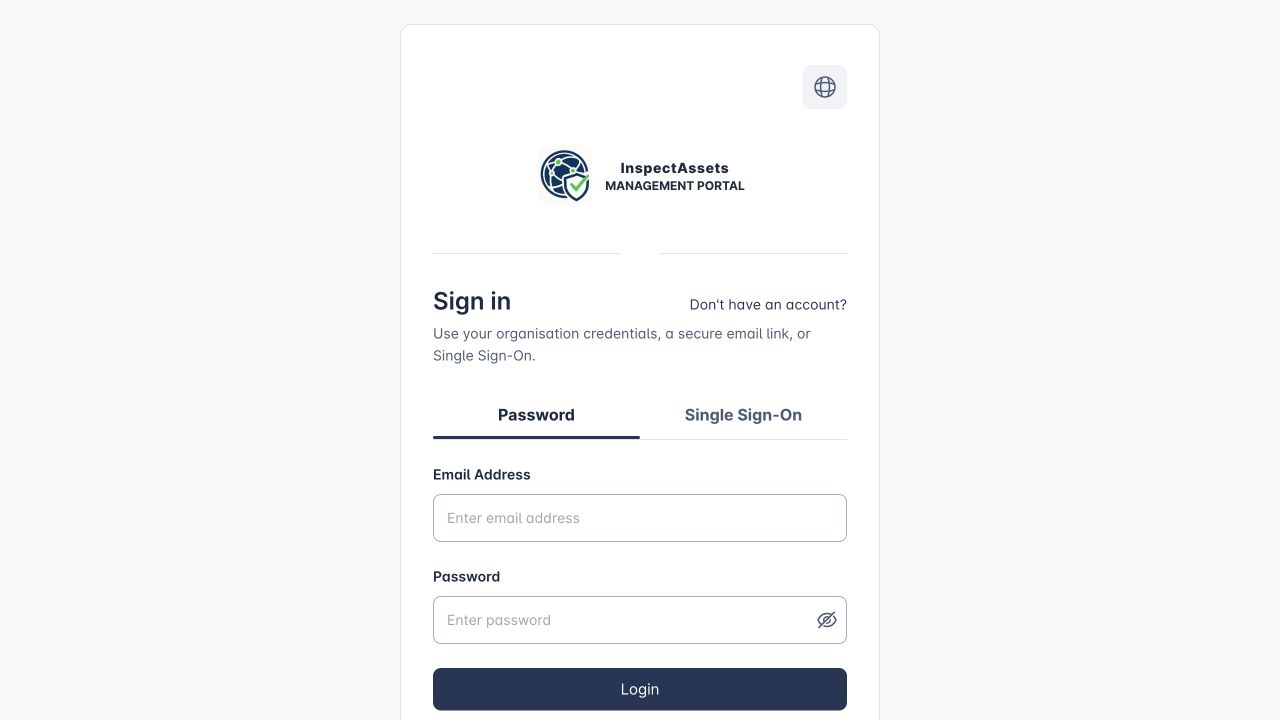
Signing in
Your organisation determines which sign-in methods are available. Local credentials, passwordless flows and single sign-on can coexist depending on configuration.
| Method | Use it when | What to expect |
|---|---|---|
| Email and password | Your organisation uses InspectAssets-managed credentials. | Enter your account email and password. Security policies may require a password change or MFA. |
| Magic link | Passwordless sign-in is enabled. | Request a time-limited link by email and open it in the same browser session. |
| Single sign-on | Your organisation uses an identity provider such as Microsoft Entra, Google Workspace, Okta, Auth0 or another configured OIDC provider. | Use the organisation SSO path. Admins can restrict permitted email domains and can enforce SSO. |
First sign-in checks
New local accounts can be required to confirm their address before normal application access is available.
An administrator-created or reset account can force a password change. Complete it before continuing.
If your account uses Email MFA, enter the current code sent to your verified email. If it uses an authenticator app, enter the current 6-digit code from that app. Authenticator users can also use a saved one-time recovery code if the device is unavailable.
Check the dashboard and navigation. If your role was recently changed, refresh or sign in again so the session receives the new permissions.
Permissions, scope and subscription
Four controls can affect what appears in your account:
Permissions
Permissions are grouped into roles. A route can accept one of several permissions, so access is based on capability rather than the role label alone.
Operational scope
Inspectors, supervisors, managers and tenant-wide administrators can have different data scopes even when they share access to the same feature.
Subscription
Some capabilities are available only when the organisation's plan includes them. Permission does not override subscription entitlement.
Active tenant
Platform administrators can act in a selected tenant. Tenant-specific actions apply to the currently selected organisation.
Understand the evidence model
Before conducting an inspection, understand the difference between condition and completeness. InspectAssets deliberately prevents an unassessed item from being interpreted as “no defect found”.
An asset can therefore have a healthy condition result and still carry management uncertainty because part of the intended inspection scope was inaccessible or pending.
Getting oriented
The left navigation is generated from your capabilities. Core areas include Sites, Assets, Inspections, Corrective Actions, Compliance, Insights, Reports and Administration. The application may label a report area My Reports for an inspector and Report Management for users with wider report scope.
The dashboard you receive, and the records shown inside it, depend on your permissions and operational scope rather than the display name of your role alone. Do not use another user's screenshot as the standard for what you should see; compare against your own access and assignments.
Your first working session
- Inspectors: open your Dashboard, review assigned inspections, then read Inspections including assessment states, evidence requirements and offline work.
- Supervisors and managers: review Inspection Management, Approvals and the limitations register so uncertainty is actively managed rather than ignored.
- Tenant administrators: verify the organisation structure in Organization Settings, then establish Sites, Assets, users and roles.
- Reporting / assurance users: review Reports & Evidence Sharing before distributing inspection information externally.
Open Documentation without a second web login
Select Documentation from the web dashboard in the same browser profile. The guide uses your API session, including one automatic refresh attempt for an expired access cookie. Your identity appears in the guide header and Open app returns to the configured application.
If you are signed out, sign in on the application login page and return to the requested guide page. Local and production destinations are selected by environment configuration. A private window, a different browser profile or a different local hostname has its own session.
For native navigation and field tasks, read the Mobile Field Guide. Native mobile and browser sessions are separate; opening a browser from mobile does not transfer native credentials.
Forgotten passwords and session expiry
Use Forgot Password for local accounts. Reset links are time-limited. If a valid account receives no message, check spam and confirm the account email with your tenant administrator.
Security sessions expire
After an idle period you may be required to sign in again. If an action unexpectedly returns an authentication or expired-token message, refresh the session before repeating the operation.